

Home > Create and Print Labels Using Your Computer > Print Barcode Labels Using Crop Print (Windows, 300 DPI Printer Only) > Barcode Document Compatible with Crop Print (Windows)


Barcode Document Compatible with Crop Print (Windows)
To use the Crop Print function, create a barcode document and save it as a PDF file.
Make sure the final barcode PDF meets the following requirements:
Barcode Conditions for Product Labels
| Item | Condition |
|---|
| Total barcode number | Between 1-99 barcodes |
| Barcode type | Use only barcodes compatible with the Crop Print feature. |
| Barcode position | Make sure barcodes are not tilted or on an angle. They must be parallel with the top and bottom of each page. There are two ways to arrange bar codes: one that prioritizes the vertical direction, and the other that prioritizes the horizontal direction.
|
Barcode Layout for Product Labels
| Correct Barcode Layout | Incorrect Barcode Layout |
|---|
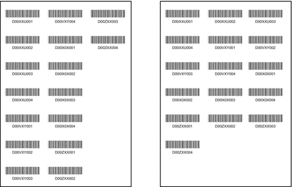 | (not aligned along the top margin) 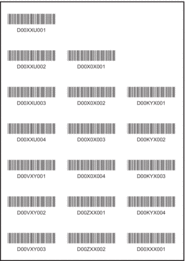 |
Did you find the information you needed?