



Change the Cutting Options
The cutting options allow you to specify how labels are fed and cut. If you do not use P-touch Editor, you can change the cutting options in the printer driver properties.
- Do one of the following:
- Windows 10/Windows Server 2016:
Click . Click the printer you want to set up, and then click Open queue. Click .
- Windows 8/Windows 8.1/Windows Server 2012/Windows Server 2012 R2:
Click Orientation in the Apps screen. Click . Right-click the printer you want to set up, and then click the Printing preferences menu.
- Windows 7/Windows Server 2008/Windows Server 2008 R2:
Click . Right-click the printer you want to set up, and then click the Printing preferences menu.
- Select the Cut Every check box, and then select where to cut when multiple labels are printed.
- Select the Cut at End check box.
- Click OK.
Label Cutting Options
| Auto Cut (Cut every one label) | Cut at End | Image |
|---|
| Off | On | 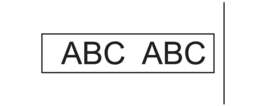 |
| Off | Off | 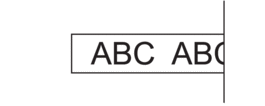 |
| On | On or Off | 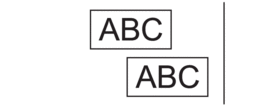 |
Did you find the information you needed?