

Home > Create and Print Labels Using Your Computer > Print Labels Distributed to Multiple Label Printers to Reduce Printing Time (Windows)


Print Labels Distributed to Multiple Label Printers to Reduce Printing Time (Windows)
When printing a large number of labels, printing can be distributed among multiple Label Printers to reduce printing time.

- The Distributed Printing function can only be used with Label Printers of the same model number.
- The number of pages is divided among the selected Label Printers. If the specified number of pages cannot be evenly divided among the Label Printers, it is divided in the order of the Label Printers as shown.
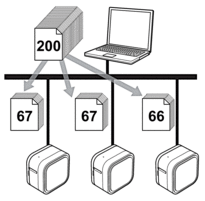
- It may not be possible to detect information for a Label Printer connected via a USB hub or print server. Before printing, make sure that each of the distributed Label Printers is correctly set up and ready.
- We recommend performing a connection test for your operating environment. Contact your information technology manager or administrator for assistance.
- In P-touch Editor, click .
- Click More settings.
- Click the Advanced tab, select the Distributed Printing checkbox, and then click Settings.
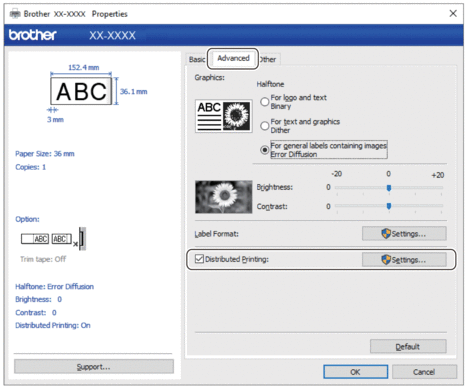 The Distributed Printing Settings dialog box appears.
 - Select the Label Printers you want to use for distributed printing.
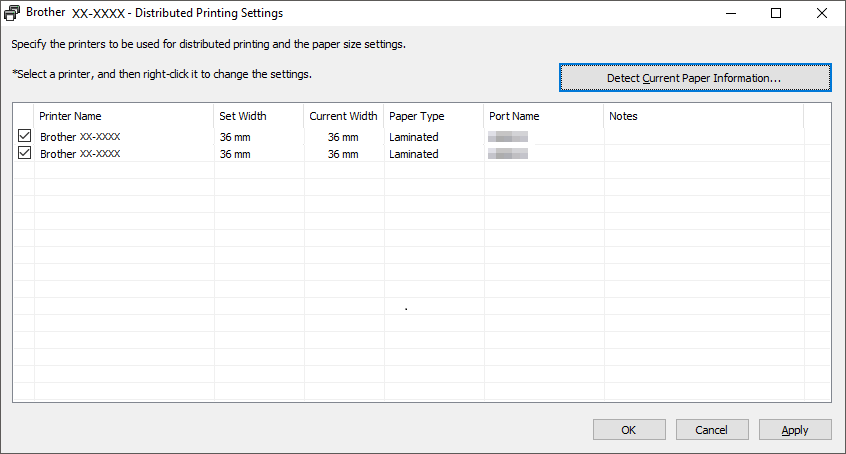
- Right-click the selected Label Printer or Printers, and then click Settings. From the Paper Size drop-down list, select the label size.
If multiple Label Printers have been selected, the same label size setting is applied to all selected Label Printers.
- Click OK to close the label size setting dialog box.
- Click OK to close the Distributed Printing Settings dialog box.The setup is completed.
- Click OK to close the Properties dialog box.
- Start printing.
Did you find the information you needed?